
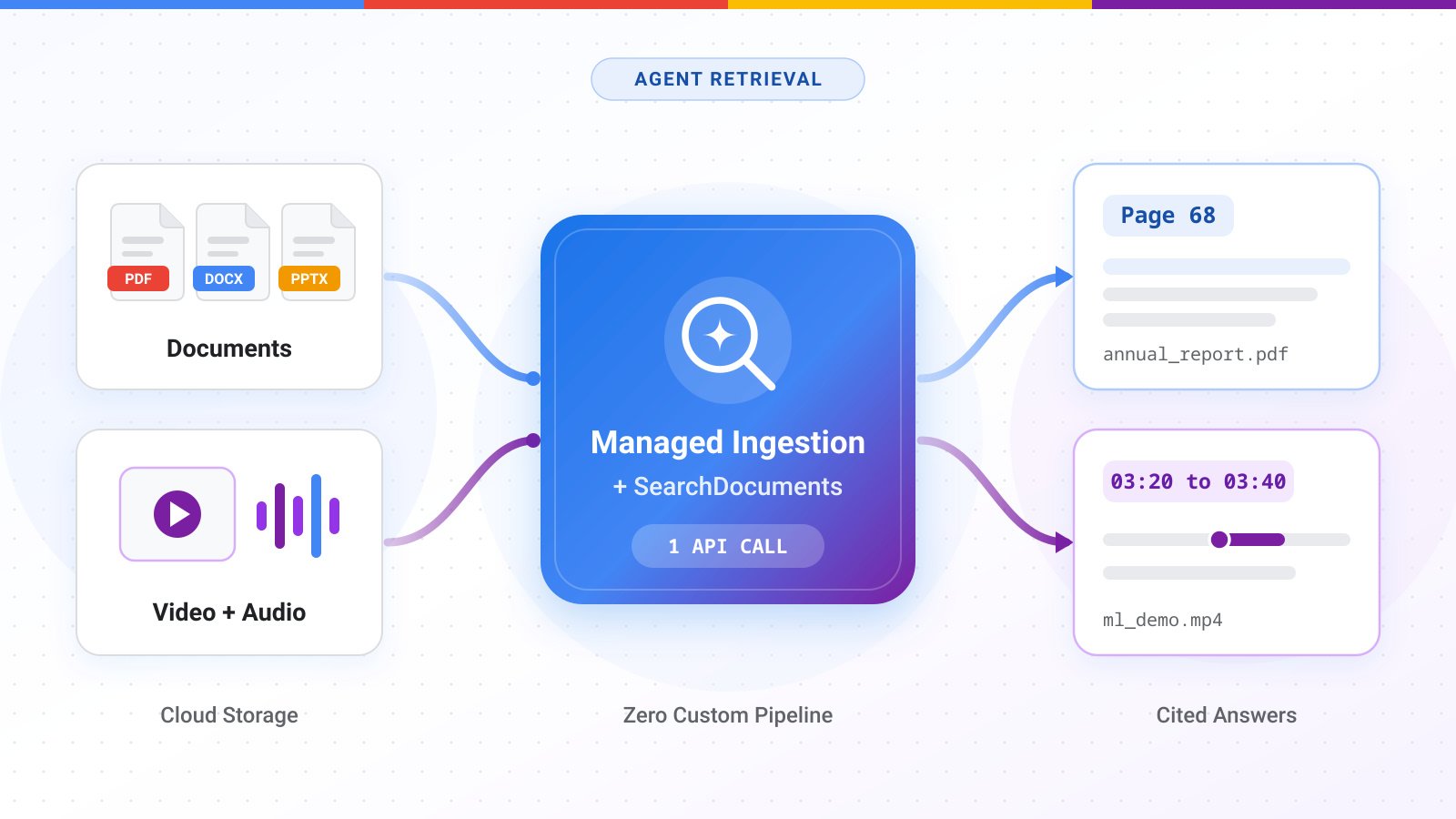
A guide to the new managed ingestion and SearchDocuments features in Agent Retrieval, for searching PDFs, Office files, and videos without writing an ingestion pipeline.
Before an agent can answer a question about your PDFs, someone has to build the pipeline: parse every file, split it into chunks, embed each chunk, write the chunks to a vector database, and then learn that database's schema to query it. For video it gets harder: transcode the files, cut them into clips, embed the frames, and keep track of which second of which video each clip came from.
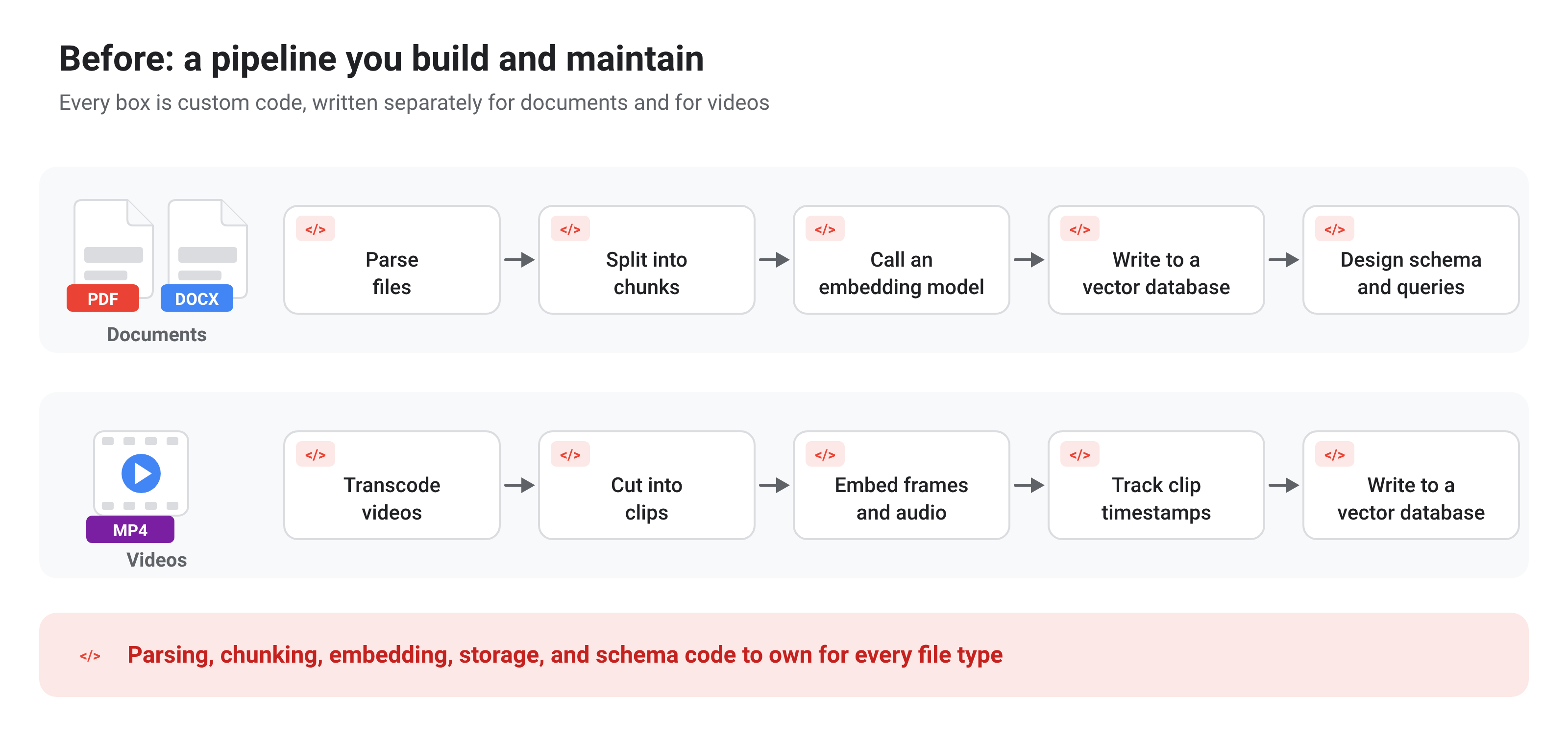
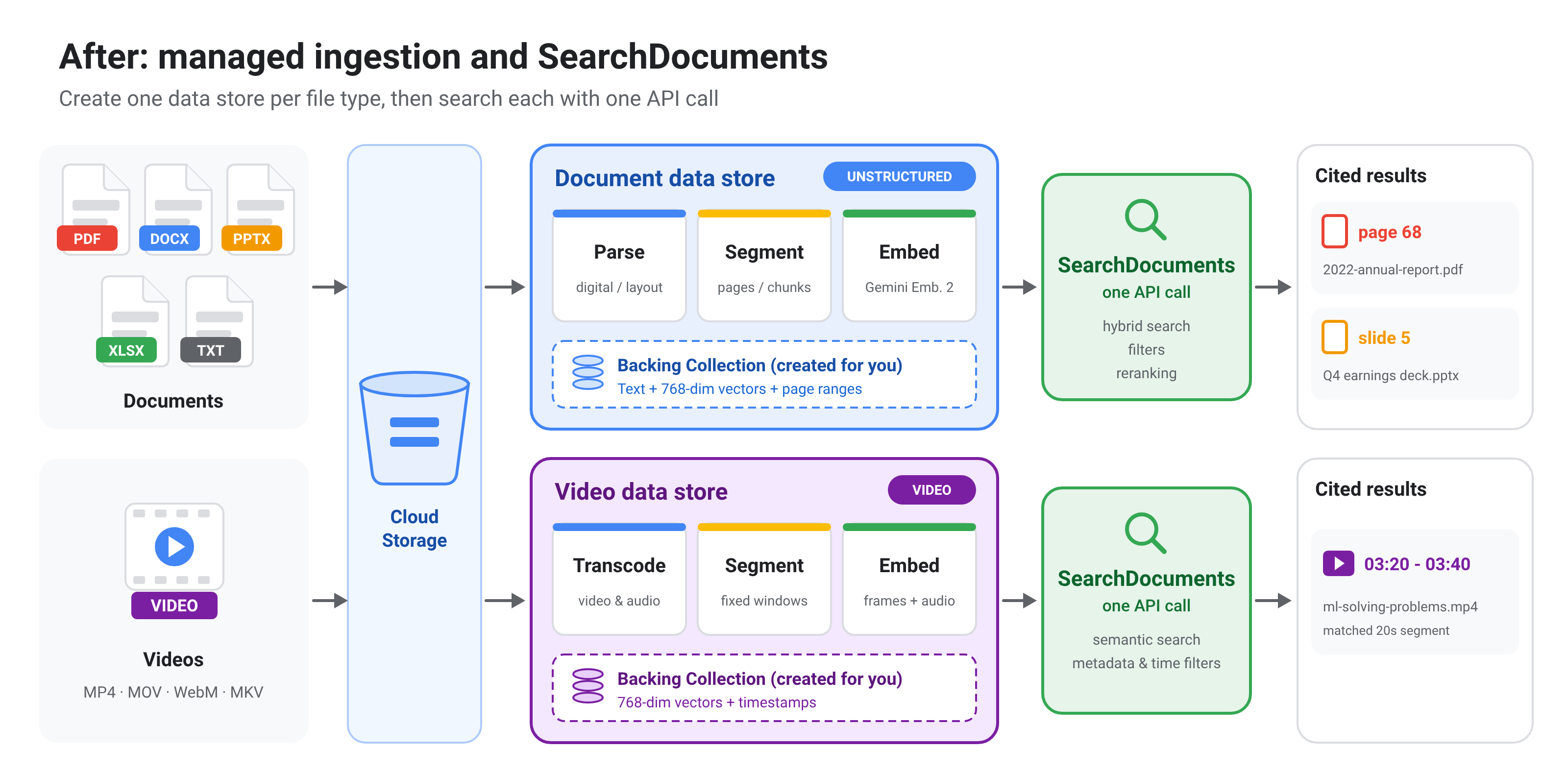
Most of that code has nothing to do with your application. Two features recently added to Agent Retrieval (formerly Vector Search 2.0), now in Public Preview, take that work off your hands. Managed ingestion builds the pipeline for you: point a data store at files in Cloud Storage, and the service parses, segments, and embeds them with Gemini Embedding 2. SearchDocuments, the second new feature, then searches the data store with one API call and returns the matching passages with their page numbers or timestamps. In our tests, 18 Alphabet investor PDFs went from a public Cloud Storage bucket to searchable, page cited results in about 9 minutes, and 19 minutes of video became searchable by both visuals and spoken audio in 0.3 to 0.5 seconds per query, with no parsing, chunking, transcription, or embedding code.
This guide covers how to create a data store, import documents and videos, and search them with filters, reranking, and audio-aware video search.
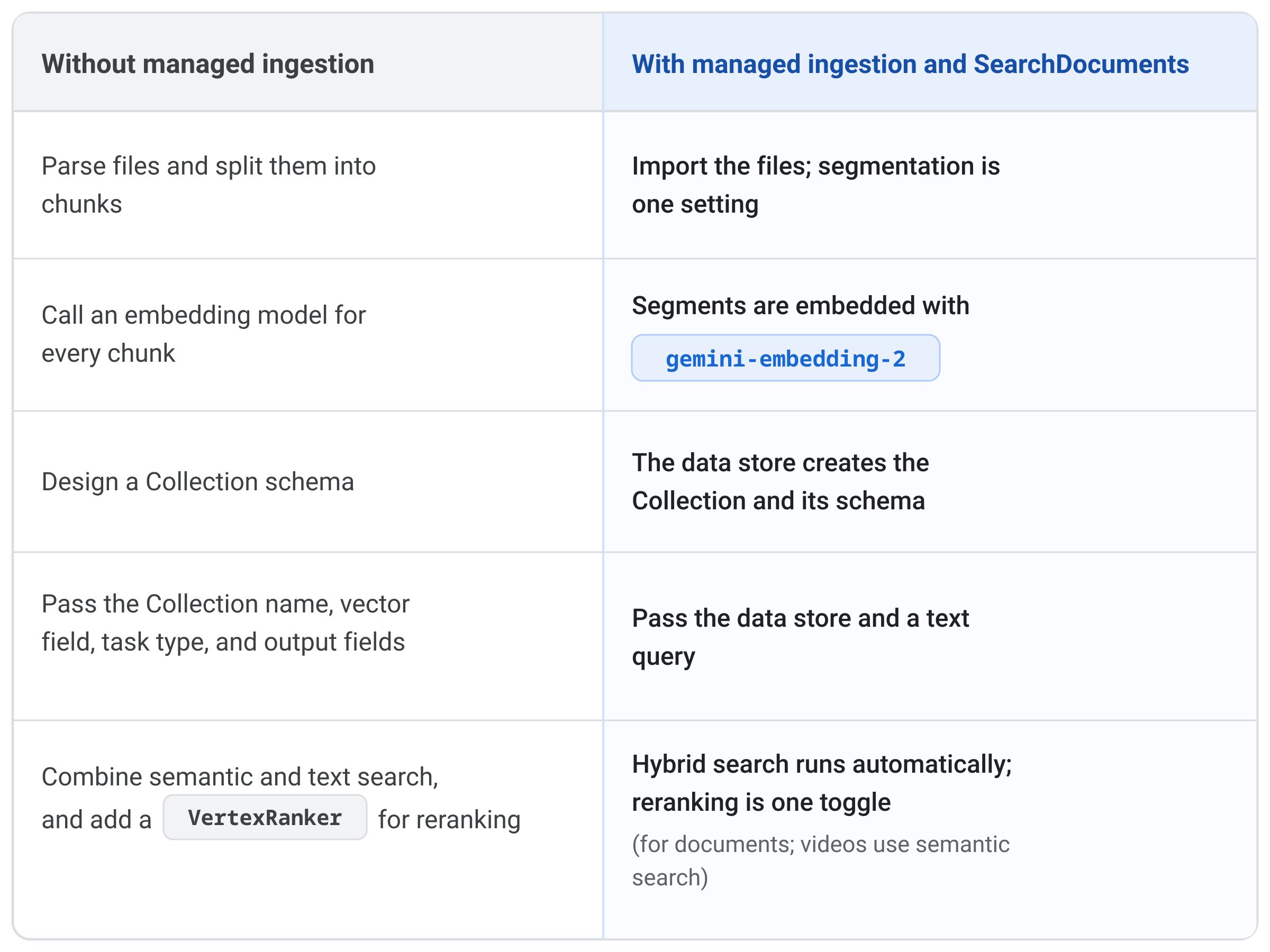
Pairing managed ingestion with SearchDocuments gives you several immediate benefits:
Agent Retrieval Collections already give you semantic, text, and hybrid search over your own data objects. But you have to produce those data objects yourself, and to query them you need to know how they are stored. Here is what changes when you let a data store do the work:
The backing Collection is still a regular Agent Retrieval Collection, so you can query it directly whenever you need full control.
A data store holds your files and the configuration that controls how they are parsed and segmented. The data store and SearchDocuments APIs are currently served over REST at v1beta, so the examples use an authorized session from google-auth:
import google.auth
from google.auth.transport.requests import AuthorizedSession
credentials, _ = google.auth.default(
    scopes=["https://www.googleapis.com/auth/cloud-platform"]
)
session = AuthorizedSession(credentials)
PARENT = "https://vectorsearch.googleapis.com/v1beta/projects/PROJECT_ID/locations/us-east4"
session.post(
    f"{PARENT}/dataStores",
    params={"data_store_id": "investor-reports"},
    json={
        "document_type": "UNSTRUCTURED",
        "processing_config": {
            "unstructured_processing_config": {
                # One segment per page, so results carry page numbers
                "segmentation_config": {"page_segmentation_config": {}},
                "parsing_config": {"digital_parsing_config": {}},
            }
        },
        # Metadata you can filter on and return in search
        "document_metadata_schema": {
            "schema": {
                "type": "object",
                "properties": {
                    "doc_type": {"type": "string"},
                    "year": {"type": "integer"},
                },
            }
        },
    },
)Two segmentation modes are available. Chunk segmentation (the default) splits text into chunks of 100 to 500 tokens and works with layout parsing, which also detects tables and headings. Page segmentation produces one segment per page. For paginated documents such as PDFs, both modes record page numbers (startPage and endPage) so you can cite pages or filter by page range: page segmentation returns a single page per segment, while chunk segmentation returns the page range each chunk spans.
Point an import at your files with URI patterns such as gs://my-bucket/reports/*.pdf, or with a JSONL manifest when you want to set your own document IDs and attach metadata:
{"name": "projects/PROJECT_ID/locations/us-east4/dataStores/investor-reports/documents/2023-q4-earnings-release", "content": {"gcsUri": "gs://my-bucket/reports/2023q4-earnings-release.pdf"}, "metadata": {"value": {"doc_type": "earnings_release", "year": 2023}}}session.post(
f"{PARENT}/dataStores/investor-reports:importDocuments",
json={
"gcs_source": {
"input_uris": ["gs://my-bucket/manifests/docs.jsonl"],
"source_format": "SOURCE_FORMAT_DOCUMENT_JSON",
},
"import_output_config": {"error_gcs_prefix": "gs://my-bucket/import-errors/run-1/"},
},
)The import runs as a long-running operation. Re-importing the same files updates existing documents instead of duplicating them, and files whose content didn't change are skipped.
SearchDocuments needs only the data store and a text query:
response = session.post(
    f"{PARENT}/dataStores/investor-reports/documents:search",
    json={
        "text_query": {"text": "How much did Google Cloud revenue grow?"},
        "top_k": 5,
    },
).json()Each result is a segment of a document, with the text, the page, and the source file:
{
  "document": {
    "name": ".../dataStores/investor-reports/documents/2022-annual-report",
    "content": {"gcsUri": "gs://.../2022_alphabet_annual_report.pdf"}
  },
  "unstructuredDetails": {
    "contentSnippet": "... Google Cloud revenues increased $7.1 billion from 2021 to 2022 ...",
    "pageRange": {"startPage": "68", "endPage": "68"}
  }
}top_k and reorders them with the Ranking API, using the same semantic-ranker-fast@latest model as Agent Retrieval's VertexRanker.Pass filter to search only the segments that match, using the same paths you read back in results:
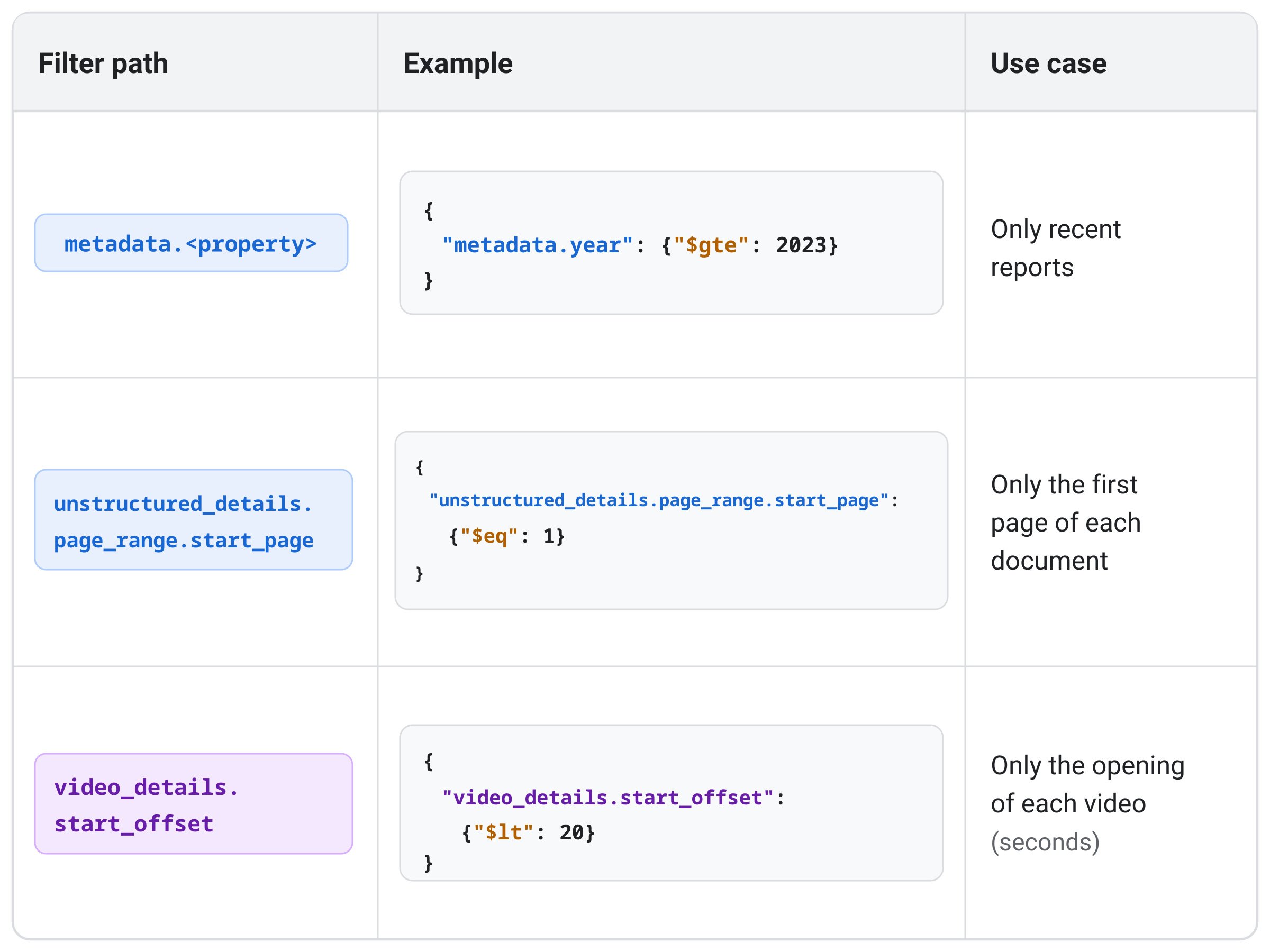
You can also pass document_ids to search only inside specific files, and output_fields.metadata to return each document's metadata with its results. In our test, searching "What did the CEO say about AI?" with the page-1 filter returned the CEO quotes from the headline page of five different earnings releases.
"ranking_spec": {"reranking_spec": {"enabled": True}}For "How many employees does Alphabet have?", plain hybrid search returned two balance sheet pages among the top five, which don't mention employees at all. With reranking on, every top result reported the headcount: the annual report's "Alphabet had 190,234 employees" and the "Number of employees" row of the quarterly supplemental tables.
Video works the same way: create a data store with document_type: VIDEO, import the files, and call SearchDocuments. The service transcodes each video, splits it into fixed windows, and embeds each window:
"document_type": "VIDEO",
"processing_config": {
    "video_processing_config": {
        "segmentation_config": {"fixed_window_config": {"segment_duration": "20s"}},
        "embedding_config": {"audio_mode": "ENABLED"},
    }
},Each result carries the moment it matched:
"videoDetails": {"startOffset": "60s", "endOffset": "80s"}We imported five Google sample videos (about 19 minutes in total) and searched them with scene descriptions. "Cucumbers being sorted by a machine" returned 03:20-03:40 of the machine learning video, where a farm's sorting machine grades cucumbers, without any tags or captions. Searches returned in 0.3 to 0.5 seconds.
By default (audio_mode: DISABLED), only the frames are embedded, so a query matches what is shown. With ENABLED, the first audio track is embedded together with the frames. We imported the same videos into two data stores and asked both about statements from a keynote, spoken while the picture shows the speaker:
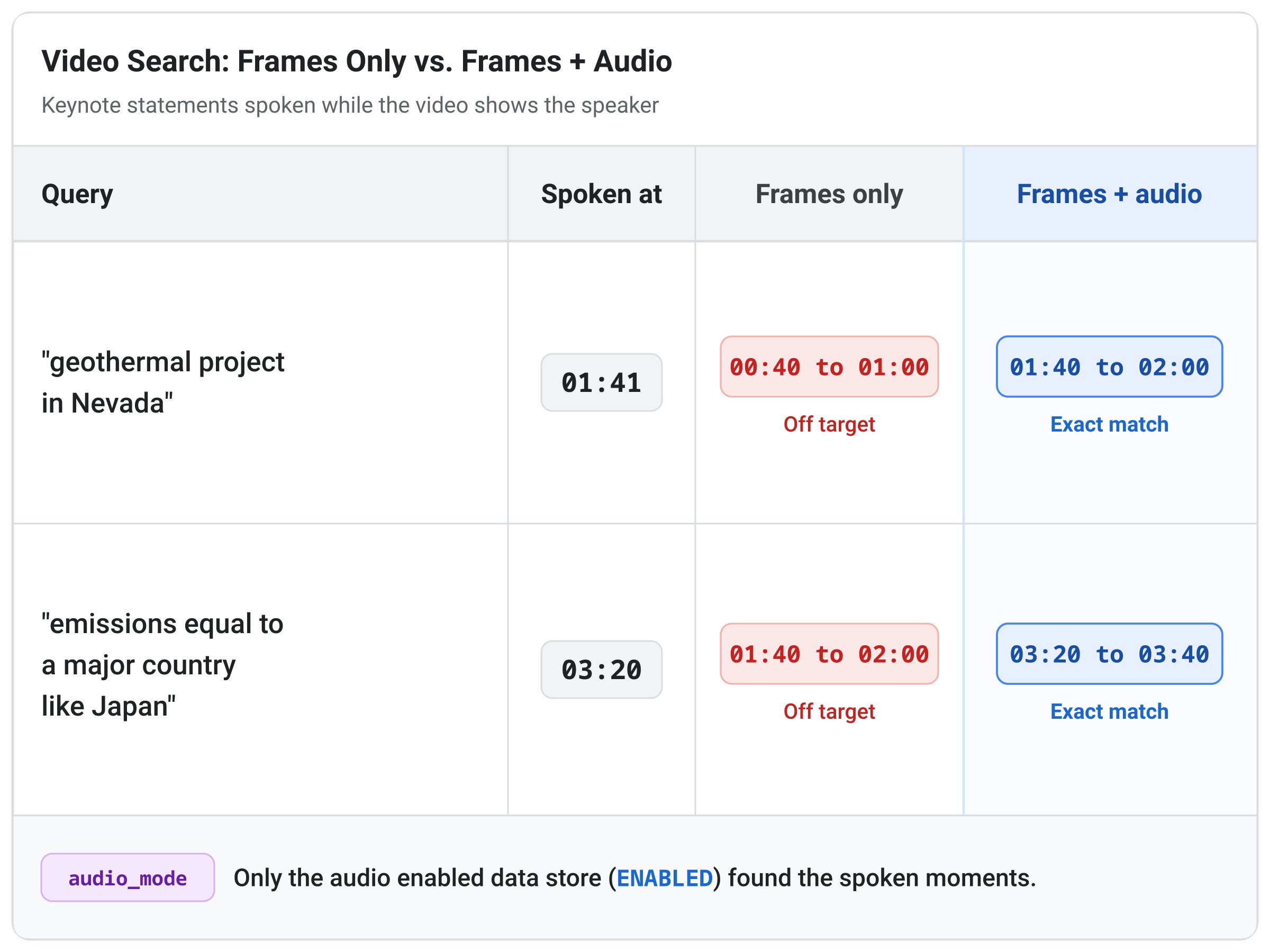
Only the audio-enabled data store found the right moments.
force=true and backing_collection_deleted=true, or its Collection is left behind. Deletion runs in the background and took about 20 minutes in our tests.reranking_spec is not supported on VIDEO data stores.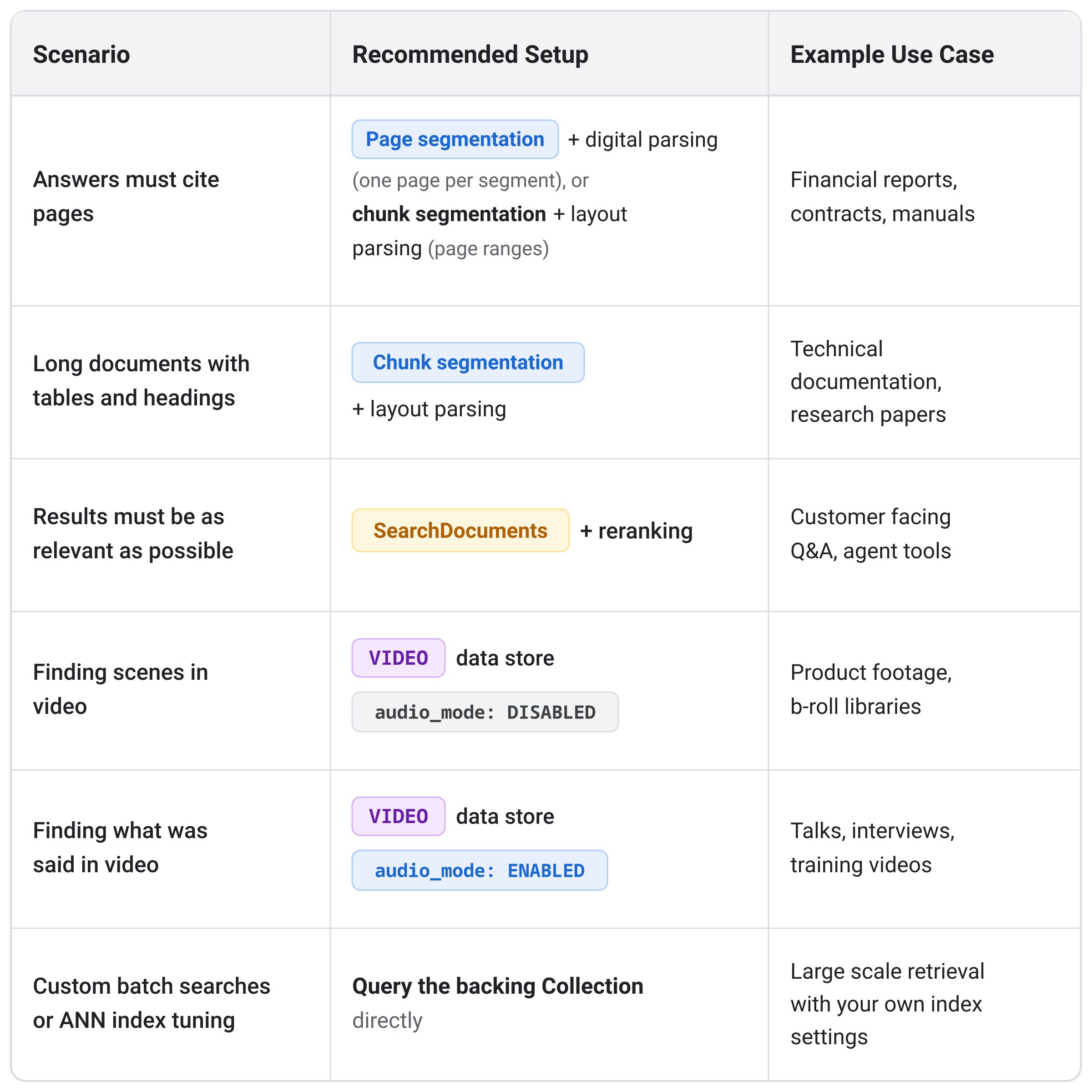
The rule of thumb: If your data is files, let a data store ingest them and search with SearchDocuments. Drop down to the Collection only when you need control the data store doesn't give you.
Managed ingestion doesn't change what good retrieval needs: well-segmented content, good embeddings, and the right filters. What changes is who builds it. Instead of maintaining parsers, chunkers, embedding jobs, and a schema, you point a data store at a bucket and get back segments that are ready to cite.
For agents, that means a retrieval tool that returns where each answer came from, a page in a PDF or a moment in a video, with one API call.
Try it yourself: the document notebook ingests 18 Alphabet investor PDFs and walks through filters and reranking, and the video notebook searches five sample videos with an inline player and compares audio modes.

Optimizing a 200,000-line Python codebase overnight with Gemini 4 Argon

Securing Your Agents: A Hands-On Guide to Agent Anomaly Detection

Agent Anomaly Detection: Safeguarding agents across other clouds
Did the user ask for this? Securing AI agents against intent hijacking with Semantic governance policies

Distributed LLM Training Across Metros: Streaming DiLoCo in MaxText
Check what your AI agents do before they do it, with Semantic governance policies